Guest
    Login
    Register
    My Cart
    (0)
    My Wishlist
    (0)
Inside Odoo, Connect Effortlessly
  • Home
  • Tools

    Connecta 
     dashboard


    Connecta 
     data mapping


    Connecta
     Connects


    connecta 
     flow dESIGNER


  • Book Meeting
  • Pricing
    • Connecta
    • Assurance Program
  • Contact us
  • Blog
  • 0
  • 0
  • Sign in
Inside Odoo, Connect Effortlessly
  • 0
  • 0
    • Home
    • Tools
    • Book Meeting
    • Pricing
      • Connecta
      • Assurance Program
    • Contact us
    • Blog
  • Sign in

Categories

  • 1. Getting Started
    • How to Access Connecta in Odoo
  • 2. Dashboard
    • How To Update Connecta on Staging Environments
  • 3. Channels
    • How to Create a New Channel in Connecta
  • 4. Outgoing
    • How to Set Up an Outgoing Connector Connection
      • HTTP API
      • Message Validation
      • Object Storage
      • Cloud File Storage
      • Database
      • FTP - File Transfer Protocol
      • SOAP - Simple Object Access Protocol
      • SFTP - SSH File Transfer Protocol
      • Message Broker
  • 5. Incoming
    • API Designer
      • How to Create a New API Design in Connecta
  • 6. Data
    • Mapping Designer
      • How to Create a New Field Mapping in Connecta
        • How To Start New Outgoing Map Version
        • How To Start New Incoming Map Version
    • Synchronization
      • How to Create a New Sync Setups in Connecta

How to Create a New Channel in Connecta

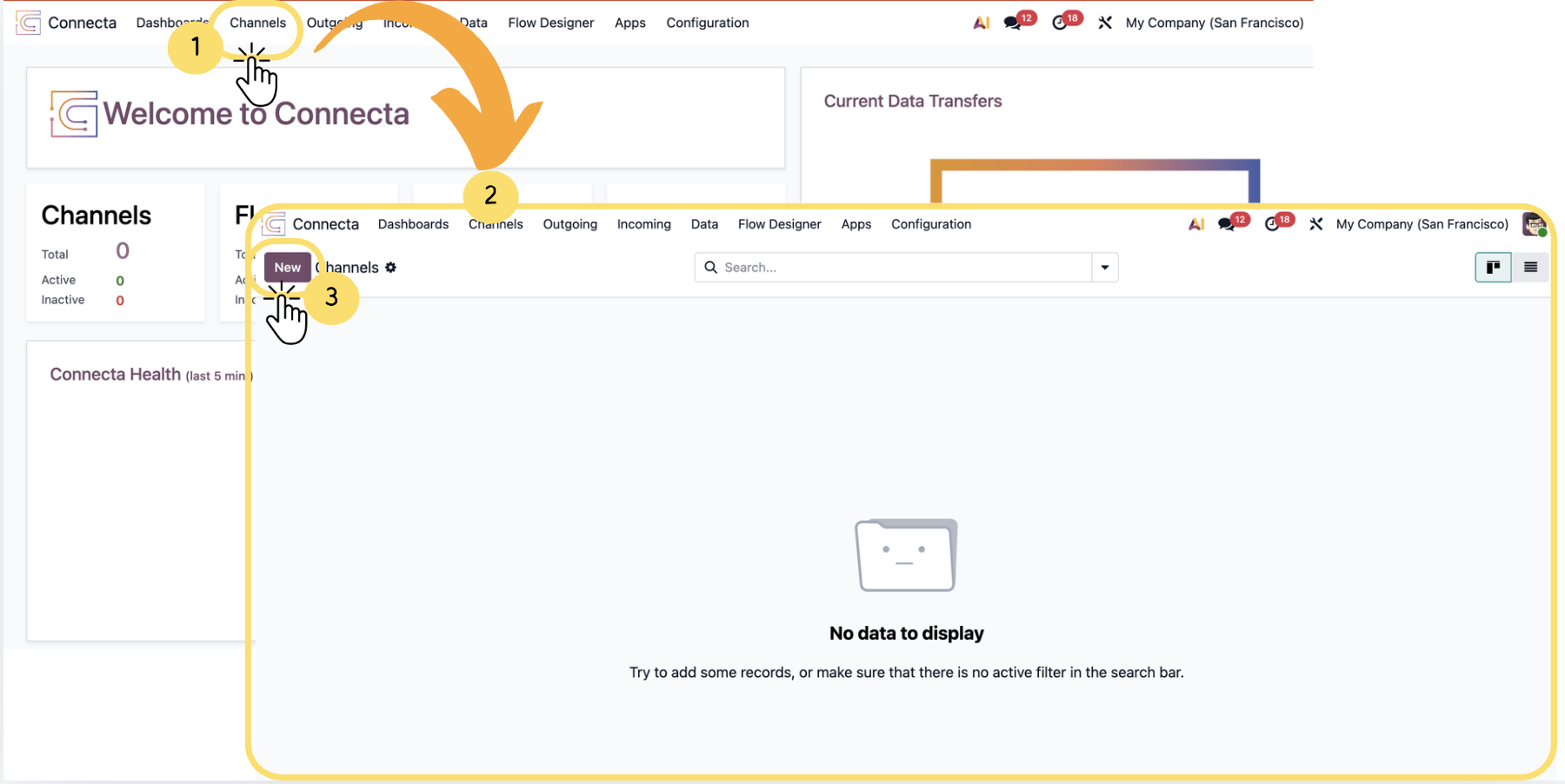
This section explains how to create and configure a New Channel in Connecta. Follow the numbered steps below to complete the setup.

1. From the top menu, click on Channels.

2. You will be redirected to the Channels list view.

3. Click the New button to create a new Channel.

Unlock the full Connecta experience

Join Connecta and discover the number one connection suite for Odoo. Access full documentation, guides, and integration knowledge.

Join Connecta now
Useful Links
  • Home
  • Support
  • Become A Partner
  • Legal
About Connecta

Documentation

Connect with us
  • Contact us