One of your projects went live three months ago. Your customer has added a new field to the product form and wants it in Exact Online too, within two days.
Until recently, that meant a ticket for the developer or an afternoon going through the integration's settings. Now you can ask an AI to do it, and three letters keep coming up everywhere: MCP.
In this guide, we look at what an Odoo partner needs to connect Claude, or another AI assistant, to Odoo. We explain what an MCP server is, what Odoo 20 brings, and what changes when, besides querying data, the AI builds the integration.
Key takeaways
- MCP is an open standard that lets an AI assistant, such as Claude, use the tools of another application.
- Odoo 20 ships with its own MCP server. The AI can search, create, and update records in Odoo, with a user's permissions.
- That's not an integration. For data to reach Exact Online or Shopify on its own, you need a flow that runs with nobody in the chat and logs its errors.
- Connecta includes an MCP server for that. You describe the integration, and the AI creates the app, maps the fields, and sets up the flow. You review it before it goes live.
What is MCP?
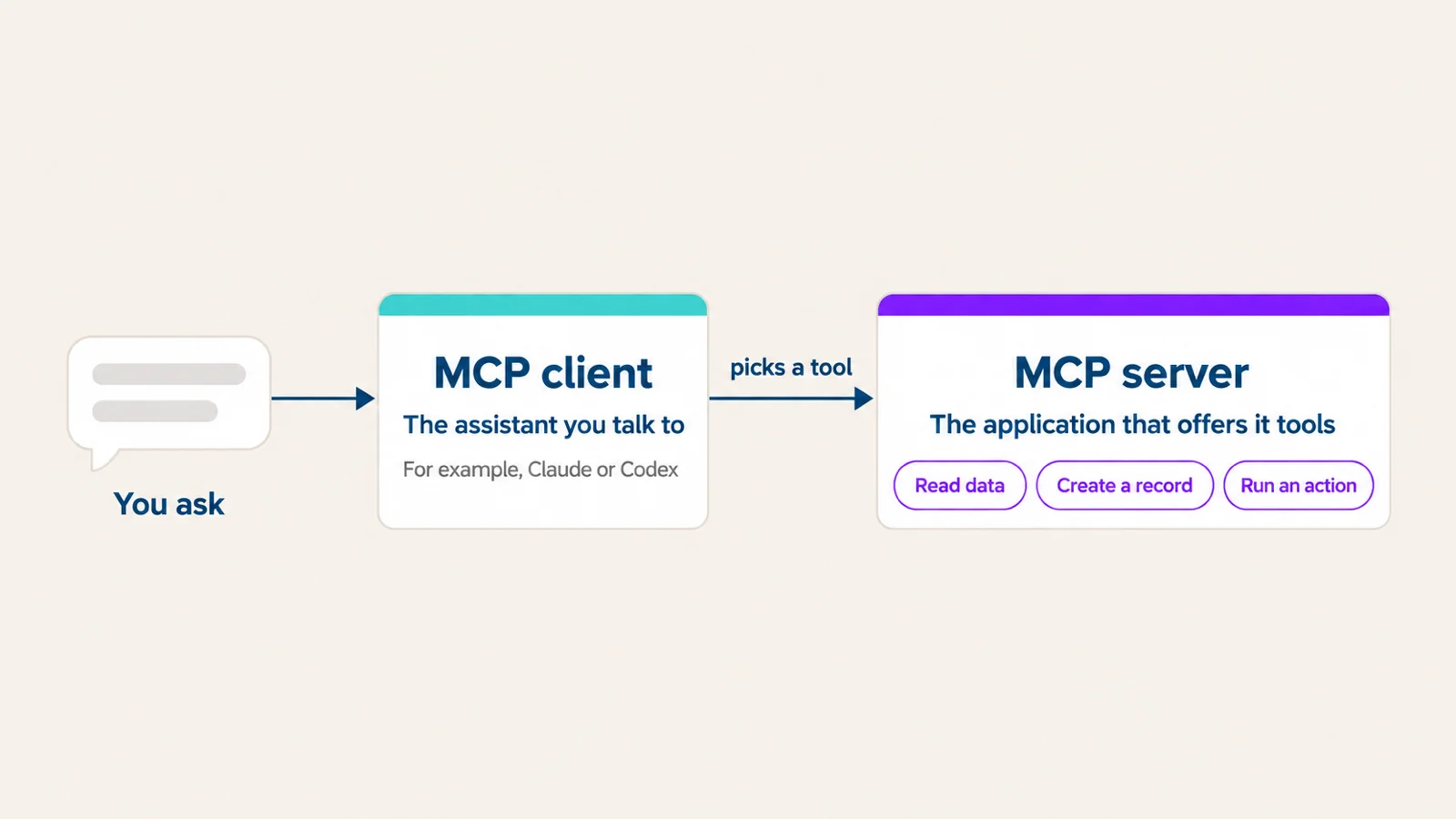
MCP stands for Model Context Protocol. It's an open standard that lets an AI assistant connect to other applications and work with their data.
It has two parts:
- The client: the assistant you talk to. For example, Claude or Codex.
- The server: the application that offers the assistant tools: read data, create a record, run an action.
The server decides which tools the AI gets. The AI picks one depending on what you ask.
What does the Odoo 20 MCP server do?
From Odoo 20, the database itself can work as an MCP server. You connect Claude Desktop or Claude Code with an API key. In Odoo, you choose which tools to give it.
The built-in tools work with Odoo data:
- Query: see which models and fields exist, search records, group and total them.
- Write: create records and update existing ones.
- Navigate: open a list, kanban, graph, or pivot view.
The AI comes in with a user's key, so it only sees and changes what that user can see and change. Each tool shows whether it is read-only, so you can see which ones change data.
It's useful for questions like "How much profit did I make last month?" or for creating a contact from the chat. There are also third-party apps that do something similar on earlier Odoo versions.
What is it not for?
Getting a posted Odoo invoice to Exact Online on its own, today and again next month.
The Odoo MCP server gives the AI access to Odoo. An integration needs three more things:
- Something that runs by itself, when an invoice is posted or every five minutes, with nobody typing in a chat.
- A stable mapping between the data in the two systems: which account matches which, and which field maps to which.
- A log of what was sent and what failed, and a way to retry it.
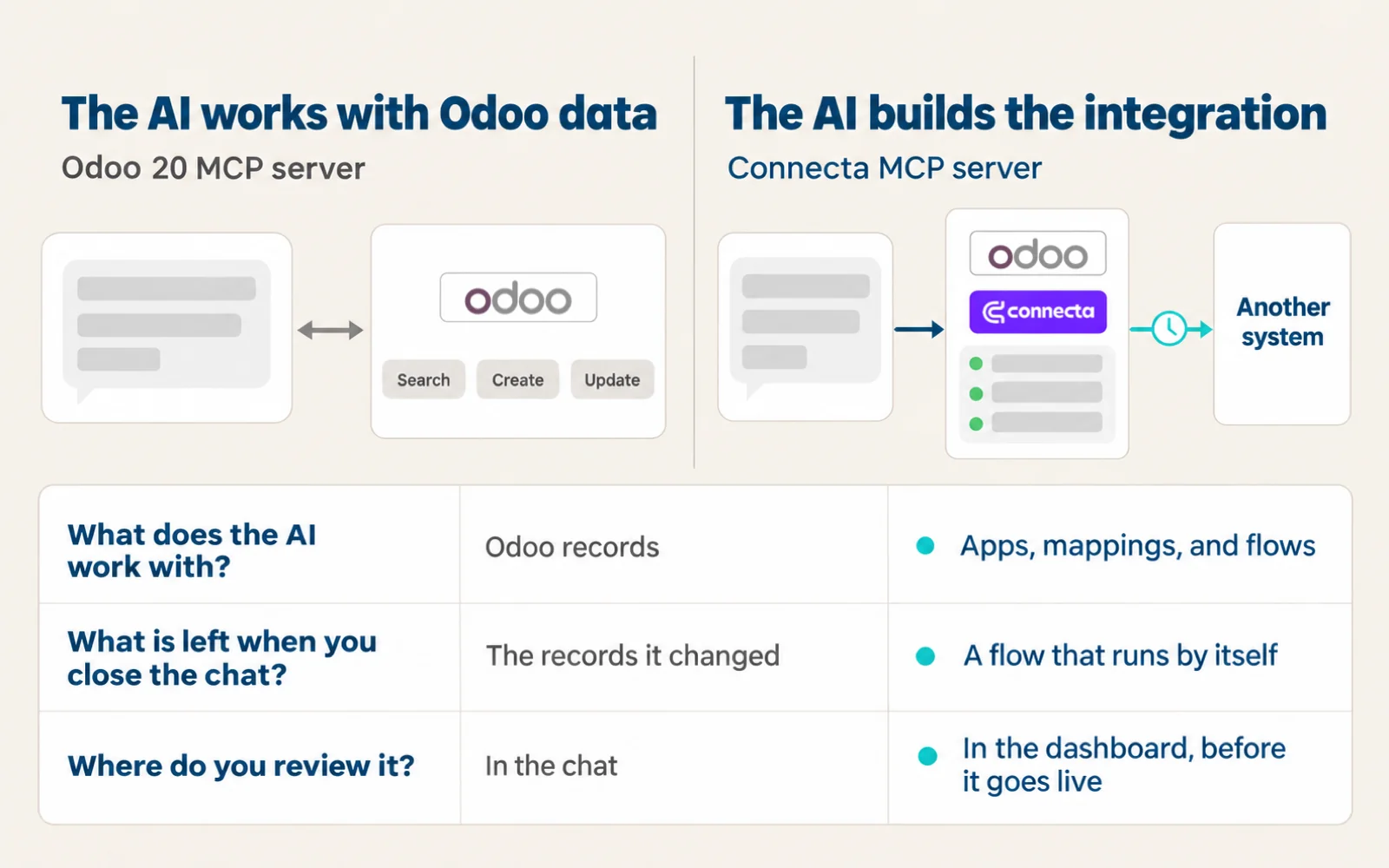
An AI can copy data from one system to another while you're talking to it. When you close the chat, the sync stops.
Two ways to use AI in an integration
- The AI does the work itself. Every time you ask, it finds the invoice in Odoo and creates it in the other system. That works for a one-off.
- The AI builds the integration. It sets up the flow once, you review it, and from then on the flow runs by itself. That's what a project needs.
How does Connecta's MCP server work?
Every Connecta plan includes an MCP server. Apps, mappings, and flows in Connecta are configuration, stored as records in your Odoo database, not code.
- You connect your assistant. Claude or any other MCP-compatible assistant, with a connection tied to your own Odoo.
- You describe what you need, in plain language. For example: "Build me a mapping to import an order." The AI reads what you already have set up in Connecta and builds on it: apps, mappings, and flows.
- You review it and switch it on. Everything the AI builds shows up in the Connecta Dashboard, ready to review before it goes live.
Our website uses this example: "Connect our Shopify store to Odoo and sync stock every 5 minutes." The AI creates the Shopify app, maps the product and stock fields, and schedules the flow.
What you end up with is a normal Connecta integration. It runs inside your customer's Odoo, with no other platform in between, and with error and synchronization logging.
What happened when we let Claude build an integration?
We wrote about it in an earlier post. A partner sent us a folder of XSD files, the schemas that define what each XML message must look like. We connected Claude to Connecta's MCP server, gave it those files, and described what the connection had to do. A few hours later, there was a working integration inside Odoo.
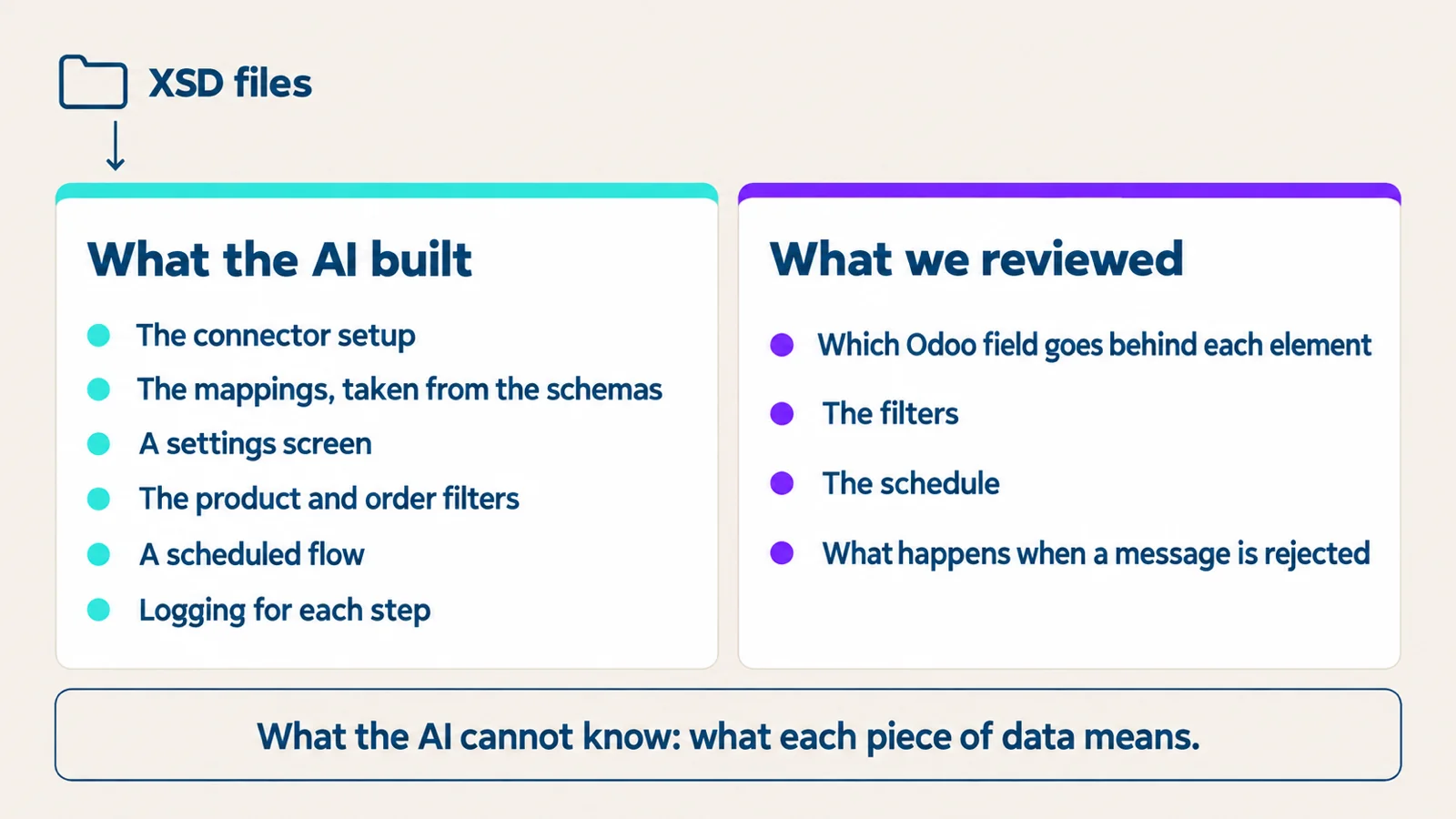
- What the AI built: the connector setup, the mappings taken from the schemas, a settings screen, the product and order filters, a scheduled flow, and logging for each step.
- What we reviewed: which Odoo field goes behind each element, the filters, the schedule, and what happens when the other system rejects a message. The first version of the filters let too many products through.
- What the AI cannot know: what each piece of data means. A schema tells you the shape of a message, not its meaning. A person decides that.
Nothing went live just because an AI built it. Everything was configuration inside Odoo, so it could be reviewed before it did anything. The full story is in From XSD to a live integration.
What should you check before you let an AI touch an integration?
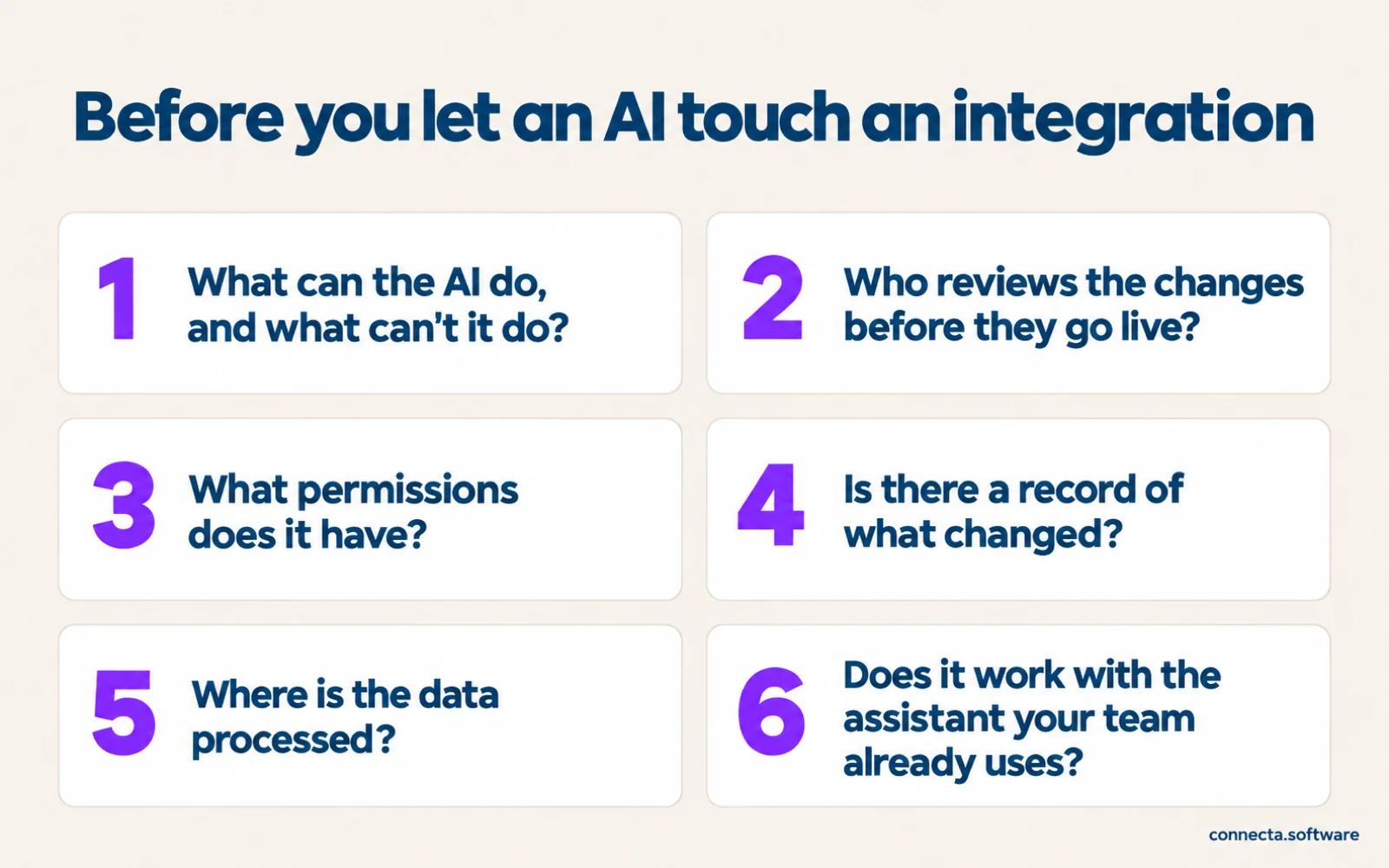
- What can the AI do, and what can't it do? Creating and changing flows isn't the same as deleting data.
- Who reviews the changes before they go live? If the answer is "nobody," your customer will be the first to find out.
- What permissions does it have? The AI shouldn't see more than it needs to build the integration.
- Is there a record of what changed? When something stops working, you'll want to know who changed what.
- Where is the data processed? If the AI builds the integration on another platform, your customer's data will pass through it.
- Does it work with the assistant your team already uses?
How does Connecta answer?
- What the AI can do: anything you can build in Connecta (apps, mappings, and flows). It builds on what you already have. In the XSD project, it also built the settings screen, the filters, and the logging for each step.
- Who reviews: you, in the dashboard, before anything goes live.
- Permissions: what the AI builds runs through Odoo, so Odoo's access rights keep doing their job.
- Record of changes: mappings are saved as versions. You prepare a change as a draft, and it goes live when you activate it.
- Where the data is processed: inside your customer's Odoo, with no extra platform holding a copy.
- Which assistant: Claude or any MCP-compatible client, so you're not tied to one.
Frequently asked questions
Can you connect Claude to Odoo?
Yes. Odoo 20 ships with its own MCP server, and its documentation explains how to connect it to Claude. The AI can read and change Odoo data with a user's permissions.
Odoo's MCP server or Connecta's: which one do I need?
Both, for different jobs. With Odoo's, you work with data: you ask how much profit you made last month. With Connecta's, you build the apps that move data between Odoo and other systems: you ask your AI to build a mapping to import an order. Those integrations then run by themselves.
Do I need Odoo 20 to use Connecta's MCP server?
No. The MCP server is part of Connecta, not of Odoo 20.
Does it cost extra?
No. The MCP server is included in every Connecta plan.
The field, in two days
Your customer will keep adding fields, but you can change what each one costs you.
In Connecta, a field you create in the morning can be in the mapping a few minutes later. You add it, preview it against a real record, and activate the change, without touching code. The step-by-step guide is in Every Odoo is custom. If you ask your AI to make the change, you still review it before it goes live.
See it on your own project
If you want to see it on your own project, book a demo or see how Connecta's MCP works.
Book a demo See how Connecta's MCP works