
Integrations WooCommerce
Odoo WooCommerce connector logo

Odoo WooCommerce Connector

Odoo WooCommerce Integration
eCommerce Updated
Two-way WooCommerce ↔ Odoo integration: orders, customers, products and variations, categories, stock, taxes, order status and tracking

Connect Odoo with WooCommerce using the Connecta Odoo WooCommerce connector. This integration automates supported data flows between Odoo and WooCommerce while keeping the configuration, mappings and synchronization logic manageable inside Connecta.

Overview
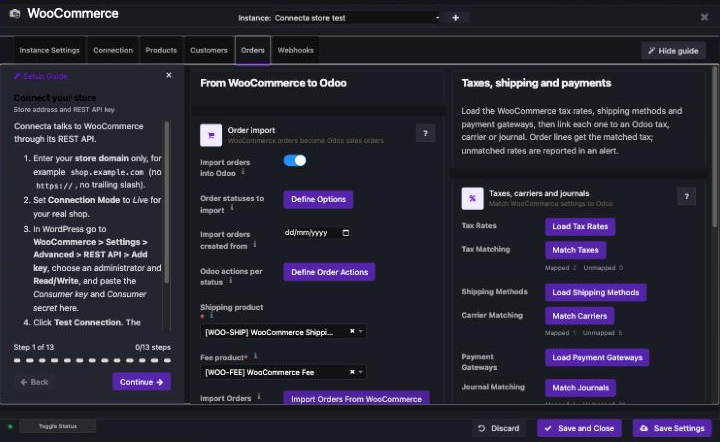
Odoo WooCommerce connector integration interface screenshot 1
Information

WooCommerce Integration for Odoo

Connect your WooCommerce (WordPress) web shop to Odoo with Connecta. Products, stock, customers and orders stay in sync, configured from one settings panel with a step-by-step setup guide.

WooCommerce → Odoo

  • Orders as Odoo sales orders, with order lines, shipping and fee lines, coupon discounts and matched taxes
  • Separate shipping addresses as delivery addresses of the customer, used for the delivery
  • Only the order statuses you choose, from a start date you choose
  • Per order status you decide what Odoo does: confirm, validate delivery, create/post invoice, register payment, cancel or create a credit note
  • Carrier from the shipping method and payments in the journal of the payment method
  • Status changes of existing orders (completed, cancelled, refunded) are applied in Odoo
  • Refunds become credit notes with exactly the refunded lines and amounts, also partial refunds
  • Customers linked by e-mail or created as Odoo contacts with their billing address
  • Real-time delivery of new and updated orders and customers through signed WooCommerce webhooks (or manual / repeated import)
  • Product categories (with parent) and an initial product import incl. variable products and variations

Odoo → WooCommerce

  • Products: name, description, SKU, price, weight, category and attributes; variable products with their variations
  • Available stock per warehouse, automatically on every stock change
  • Contacts (optional create and update)
  • Order status: tracking number as customer note, order set to Completed when all deliveries are done, Cancelled when cancelled in Odoo

Matching

Sync tables with matching tools for products, variations, categories, customers, tax rates, shipping methods and payment gateways, so existing data in both systems can be linked before the first sync.

Requirements

WooCommerce with the REST API (v3) over HTTPS and pretty permalinks, and a Read/Write REST API key. Webhook deliveries are verified with a signing secret that Connecta generates per store.

How the Odoo WooCommerce connector works

Connecta manages the connection between Odoo and WooCommerce through configured connectors, mappings, flows and synchronization setups. The supported synchronization objects below show which business data can move in each direction for this connector.

Supported Odoo version
19.0
Required Connecta version
19.0.0.107

Odoo WooCommerce Integration: Supported Data Flows

What does it synchronize?
From Odoo to WooCommerce
Products
Product Variants
Product Attributes
Stock Levels
Contacts
Tracking Information
From WooCommerce to Odoo
Sale Orders
Contacts
Products
Product Variants
Product Categories
Taxes
Shipping Carriers
Journals
Customer Invoices
Payments
Credit Notes
Features
App features
Real-time synchronization
Easy setup wizard
Multi-company
Duplicate prevention
Secure authentication
Event-based synchronization
Custom field mapping
Error notifications
Manual synchronization
Configurable filters
Two-way synchronization
Multi-warehouse
Initial data import
Included with every app
Dashboards & insights
Error logging
Synchronization logging
Alerts & notifications
FAQ
How do WooCommerce orders get into Odoo?

Switch on the order webhooks in the settings panel and WooCommerce sends every new or updated order to Connecta immediately. You can also import orders manually with the Import Orders button. Only new orders with a status you selected and created after your start date are imported, and an order is never imported twice.

What happens when an order changes in WooCommerce after it was imported?

The Odoo Actions you set for the new status are applied to the existing Odoo order, for example validate the delivery when it is Completed, cancel when it is Cancelled or create a credit note when it is Refunded. Order lines are not changed.

Are refunds supported?

Yes. Every WooCommerce refund becomes a posted credit note on the order's invoice with exactly the refunded products, quantities and amounts, including shipping. A refund without lines (for example a goodwill amount) is credited on the Fee product. A refund is never credited twice. The actual money refund is reconciled by your accountant via the bank.

Which credentials do I need?

Only a WooCommerce REST API key with Read/Write permissions (WooCommerce > Settings > Advanced > REST API). Webhook deliveries are signed by WooCommerce with a secret that Connecta generates per store, so no extra key is needed.

Can I control which products are sent to WooCommerce?

Yes. The product and variant filters in the settings panel decide which Odoo products are sent. Changes are sent automatically; Send All Products does a complete export.

Are stock levels synchronized?

Yes. The free quantity (on hand minus reserved) of the chosen warehouse is sent to the linked WooCommerce product or variation whenever stock changes in Odoo.

How are taxes, carriers and payments handled?

Load the WooCommerce tax rates, shipping methods and payment gateways and link each one to an Odoo tax, carrier or journal. Order lines get the matched tax, the order gets the matched carrier and paid orders get a payment in the journal of their payment method.

What happens when an order is shipped in Odoo?

When the delivery is validated, the tracking number is added to the WooCommerce order as a customer note and the order is set to Completed once all deliveries are done. Cancelling the Odoo order cancels it in WooCommerce.

Which Odoo apps are required?

Sales and Inventory. Accounting is used when you let Connecta create and post invoices, register payments and create credit notes.

Documentation

Getting started with WooCommerce

Getting started

Open Connecta > Start, find the WooCommerce app and click Open Settings. Click Setup Guide to be walked through every step.

1. Connect your store

  1. In WordPress go to WooCommerce > Settings > Advanced > REST API > Add key. Choose an administrator, set permissions to Read/Write and generate the key.
  2. On the Connection tab enter your store domain (e.g. shop.example.com), the Consumer key and the Consumer secret, set the mode to Live and click Test Connection.
  3. Choose the Odoo Company and optionally a Sales Team. Requirements: HTTPS and pretty permalinks (Settings > Permalinks, anything except Plain).

2. Products

  • Odoo is master: switch on Send product changes to WooCommerce, set the product filter and click Send All Products.
  • WooCommerce is master: import categories first, then Import Products. Turn on Auto-create product to create missing products.
  • Both have products: click Load WooCommerce Products and check Match Products / Match Variants (SKU is shown).

3. Stock

Switch on Send stock to WooCommerce, choose the warehouse and click Send All Stock once.

4. Customers

Run Import Customers. Enable Create and update contacts in Odoo if missing customers may be created. Pushing Odoo contacts to WooCommerce is optional.

5. Orders

  • Select the order statuses to import (usually Processing and Completed) and optionally a start date. This only applies to new orders.
  • Choose the shipping and fee service products.
  • Load and match tax rates (important for correct totals), shipping methods (carrier on the order) and payment gateways (journal for the payment).
  • Click Define Order Actions and choose per WooCommerce status what Odoo does, for example Processing = confirm order + create and post invoice, Completed = validate delivery, Cancelled = cancel order and delivery (plus Create Credit Note when invoices are posted at Processing), Refunded = create and post credit note.
  • Click Import Orders.
  • Switch on Send order status to WooCommerce to send tracking numbers and completed/cancelled status back.

Delivery addresses

When the shipping address of an order differs from the billing address, it is stored as a delivery address under the customer and used as the delivery address of the order (and its delivery). An existing delivery address with the same street and postcode is reused.

Order updates and refunds

When an order that is already in Odoo changes in WooCommerce, the Order Actions of the new status are applied to the Odoo order. Every refund made in WooCommerce becomes a posted credit note on the order's invoice with exactly the refunded products, quantities and amounts (including shipping). A refund without lines, such as a goodwill amount, is credited on the Fee product without tax. A refund is credited only once, and only when the order has a posted invoice. Reconcile the actual money refund via the bank.

6. Real-time webhooks

On the Webhooks tab switch on New orders and Updated orders (and optionally the customer webhooks) and save. Connecta creates the webhooks in WooCommerce with a per-store signing secret and rejects deliveries with a wrong signature. WooCommerce delivers webhooks in the background, usually within a minute. If you change the store URL, switch the toggles off and on again.

Known limitations

  • Coupon discounts are included in the line prices (no separate discount line).
  • A company name on a separate shipping address is not kept on the Odoo delivery address.
  • Changes to the lines of an order that is already in Odoo are not applied (only its status and refunds).
  • Product changes made in WooCommerce are not synced back automatically (use the product import).